how to copy and paste on chromebook
How to copy and paste on Chromebook is one of the most essential skills for anyone using Chrome OS. While copying and pasting may seem like a basic computer function, many Chromebook users—especially those switching from Windows or macOS—quickly realize that Chrome OS works a little differently.
Chromebooks are widely used in schools, offices, and homes because of their speed, simplicity, and cloud-based design. However, unfamiliar keyboard layouts, unique shortcuts, and touchpad gestures often confuse new users. Knowing how to copy and paste correctly can save time, reduce frustration, and make everyday tasks such as writing emails, completing homework, editing documents, or managing files far more efficient.
This guide explains everything you need to know about copying and pasting on a Chromebook, from basic methods to advanced Chrome OS features, while keeping the information clear, practical, and easy to follow.
Understanding Copy and Paste on Chrome OS
Copy and paste is a universal computing function that allows users to duplicate text, images, files, or links from one location and insert them elsewhere. On a Chromebook, this function works across the Chrome browser, Google Docs, Gmail, Android apps, Linux apps, and even system folders.
Chrome OS relies heavily on keyboard shortcuts and cloud-based workflows, but it also supports mouse, touchpad, and touchscreen input. This flexibility makes Chromebooks accessible to users of all experience levels, but it also means there are multiple ways to perform the same action.
Once you understand how Chrome OS handles the clipboard—the temporary storage where copied items are kept—you’ll find that copying and pasting on a Chromebook is fast and reliable.
How to Copy and Paste on Chromebook Using the Keyboard
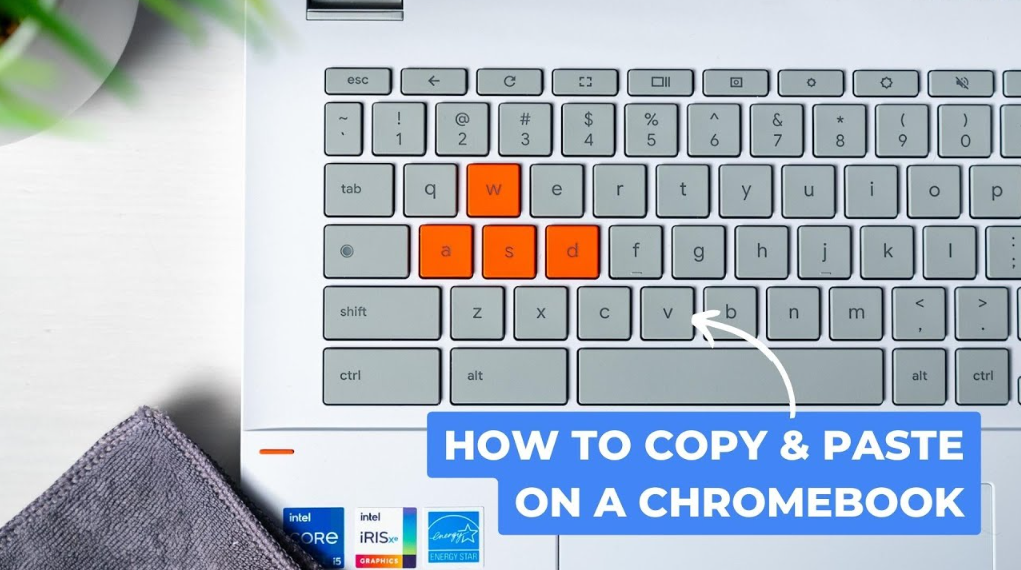
The keyboard method is the fastest and most commonly used way to copy and paste on a Chromebook. Unlike Windows laptops, Chromebooks do not have a traditional “Ctrl” key in the same location, but the shortcuts remain familiar.
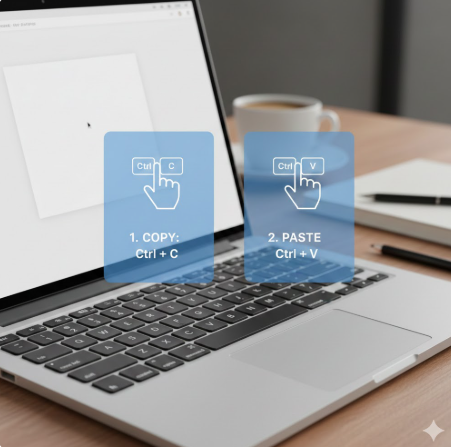
To copy text or content, you first highlight it by clicking and dragging your cursor across the text. Pressing Ctrl + C copies the selected content to the clipboard. To paste it elsewhere, place the cursor where you want the content to appear and press Ctrl + V.
Cutting text works in a similar way. When you press Ctrl + X, the selected content is removed from its original location and stored on the clipboard, ready to be pasted.
Chromebooks also support Ctrl + A, which selects all text in a document or text field. This is particularly useful when copying entire articles, emails, or notes.
For users who write frequently, these shortcuts become second nature and significantly increase typing speed and efficiency.
Also Read: What is Refixs2.5.8a? Its Uses and Benefits with Python
Copy and Paste on Chromebook Using the Touchpad
Many Chromebook users prefer using the touchpad instead of keyboard shortcuts. Chrome OS includes intuitive touchpad gestures that make copying and pasting simple.
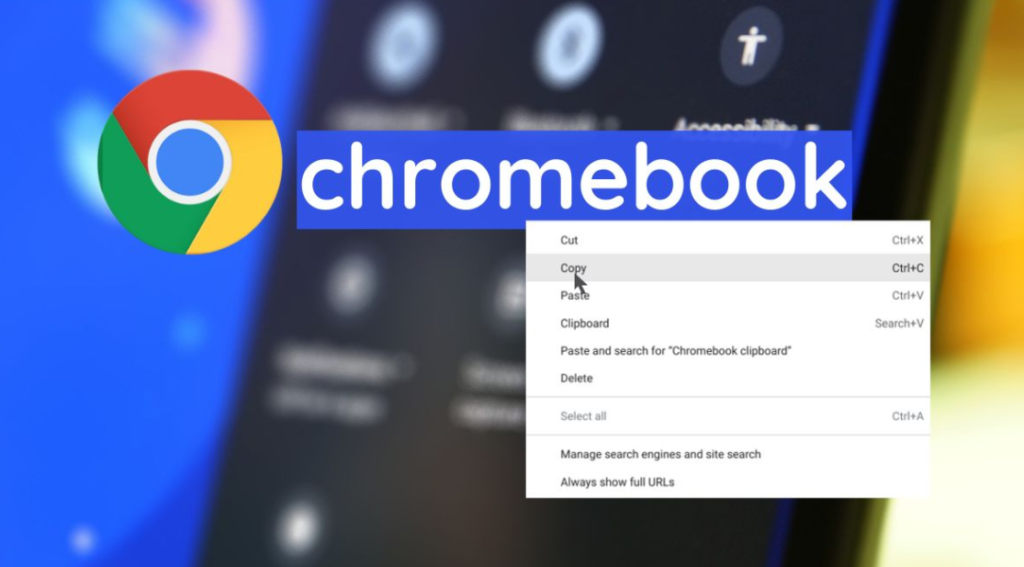
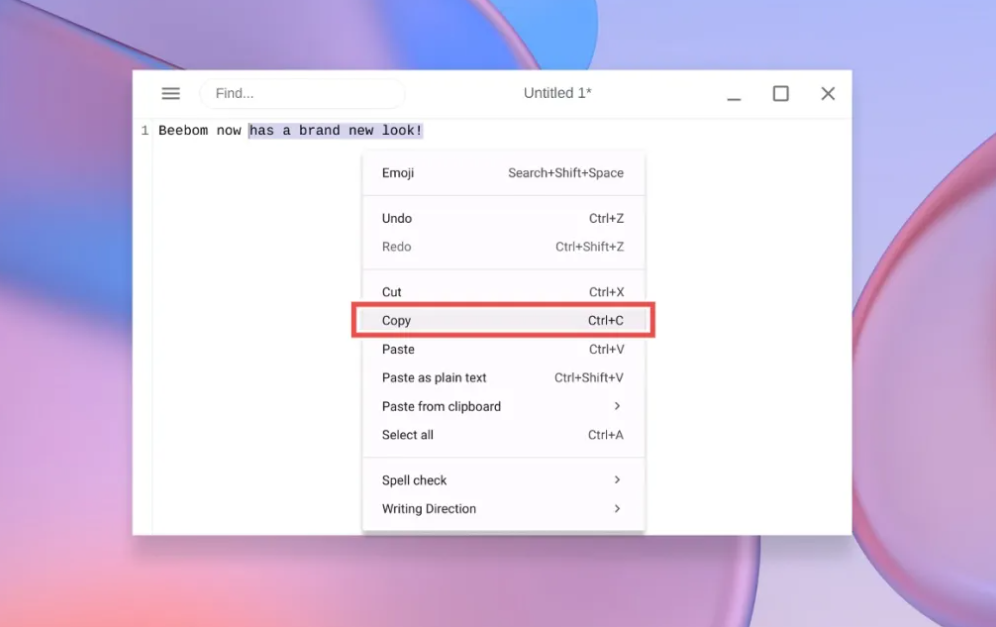
After selecting text by dragging the cursor across it, tapping the touchpad with two fingers opens a context menu. From this menu, you can choose the copy or cut option. Moving the cursor to a new location and tapping with two fingers again allows you to paste the content.
This method is especially helpful for users who are new to Chromebooks or those who prefer visual confirmation before performing an action. It works consistently across most apps and websites.
Also Read: Vacuum Technology: Innovations, Applications, and Future Trends
How to Copy and Paste on a Chromebook with a Touchscreen
Many modern Chromebooks come with touchscreens, making them even more versatile. Copying and pasting using touch input closely resembles how it works on smartphones and tablets.
To copy text, you press and hold on a word until selection handles appear. Dragging these handles allows you to select more text. Once selected, a small menu appears with options to copy or cut. Tapping paste inserts the copied content wherever the cursor is placed.
Touchscreen copying works well in Android apps, Google Docs, and Chrome browser pages. However, some older websites may have limited touch support, in which case keyboard or touchpad methods are more reliable.
How to Copy and Paste Images on Chromebook
Copying images on a Chromebook is slightly different from copying text, but it is just as simple once you know how it works.
When browsing the web, right-clicking (or two-finger tapping) on an image brings up an option to copy the image. This allows you to paste it directly into supported apps like Google Docs, Gmail, or image editors.
Chromebooks also allow users to copy an image’s URL instead of the image itself. This is useful for sharing links or embedding images online. However, not all platforms support direct image pasting, so pasting the image link may be the only available option in some cases.
Copy and Paste Files and Folders on Chromebook
In addition to text and images, Chrome OS allows users to copy and paste files and folders using the Files app. This is particularly helpful for managing downloads, documents, and cloud storage.
Selecting a file and using the same Ctrl + C and Ctrl + V shortcuts allows you to duplicate files within folders or move them between locations. You can also use the touchpad’s two-finger tap to access copy and paste options.
Chromebooks integrate seamlessly with Google Drive, so copying and pasting files between local storage and cloud storage works smoothly, provided you have an internet connection.
Also Read: Https //www.microsoft.com /ink
Using the Chromebook Clipboard History Feature
One of the most powerful yet overlooked Chrome OS features is clipboard history. Unlike traditional clipboards that store only one item at a time, Chromebooks can store multiple copied items.
By pressing Search (Launcher) + V, users can access clipboard history and view recently copied text, links, or images. This feature is especially useful for writers, researchers, and students who need to manage multiple pieces of information at once.
Clipboard history improves workflow efficiency and reduces the need to repeatedly switch between tabs or documents.

Common Copy and Paste Problems on Chromebook and How to Fix Them
Despite its simplicity, copying and pasting on a Chromebook does not always work perfectly. Sometimes copied content fails to paste, formatting breaks, or shortcuts stop responding.
These issues are often caused by browser extensions, outdated Chrome OS versions, or restricted permissions on certain websites. Restarting the Chromebook, updating Chrome OS, or disabling conflicting extensions usually resolves the problem.
Another common issue occurs when copying content from protected websites. Some sites intentionally block copying to protect copyrighted material. In such cases, alternative methods like using Google Docs’ “Paste without formatting” option may help.
Copy and Paste Without Formatting on Chromebook
When copying text from websites, formatting such as fonts, colors, and spacing often comes along. Chromebook users can paste text without formatting by using Ctrl + Shift + V.
This shortcut pastes only plain text, making it ideal for writing documents, emails, or notes without unwanted styling. It is particularly useful for students and professionals who need clean, consistent formatting.
Copy and Paste Across Devices with Chromebook
Chromebooks support cross-device copying through Google’s ecosystem. If you are signed into the same Google account on multiple devices, Chrome OS can sync clipboard data between them.
This allows users to copy text on their phone and paste it on their Chromebook, or vice versa. This feature enhances productivity and highlights Chrome OS’s strength as a cloud-connected operating system.
Also Read: Izonemedia360.com Entrepreneur Driving Tech Innovation
Why Chromebook Copy and Paste Skills Improve Productivity
Learning how to copy and paste on Chromebook goes beyond basic computer literacy. It directly impacts how efficiently you work, study, and communicate.
According to productivity studies, keyboard shortcuts alone can save users several hours per month. Chrome OS is designed to reward users who understand its shortcuts and features, making simple actions like copying and pasting feel seamless and fast.
Also Read: Miro Board Complete Guide Login Examples & Best Uses
Conclusion: Mastering How to Copy and Paste on Chromebook
Mastering how to copy and paste on Chromebook is a small skill with a big impact. Whether you’re copying text, images, files, or links, Chrome OS offers multiple intuitive methods that cater to different user preferences.
From keyboard shortcuts and touchpad gestures to touchscreen controls and clipboard history, Chromebooks provide flexible and powerful tools that make everyday tasks faster and easier. Once you understand these features, you can confidently navigate Chrome OS and use your Chromebook to its full potential.
FAQs About How to Copy and Paste on Chromebook
Can I copy and paste on a Chromebook without a mouse?
Yes, Chromebook keyboard shortcuts allow full copy and paste functionality without a mouse.
Why won’t copy and paste work on my Chromebook?
This is often caused by outdated software, browser extensions, or restricted website permissions.
Does Chromebook support clipboard history?
Yes, pressing Search + V opens clipboard history on supported Chrome OS versions.
Can I copy and paste between my phone and Chromebook?
Yes, if both devices are signed into the same Google account and sync is enabled.
About The Author