how to log out of netflix on tv
Knowing how to log out of Netflix on TV is essential in today’s multi-device streaming world. Netflix accounts are frequently used across shared televisions in homes, hotels, vacation rentals, offices, and even friends’ houses. While the platform makes signing in easy, logging out is not always obvious, especially on smart TVs and streaming devices where menus differ significantly.
Many users leave Netflix signed in unintentionally, which can lead to profile misuse, disrupted recommendations, unauthorized viewing, or account security concerns. According to Netflix usage data, millions of users access the platform from more than one household, making proper sign-out habits increasingly important. This guide explains, in clear and practical language, how to log out of Netflix on TV across all major platforms, why it matters, and what to do when the log-out option isn’t visible.
Why Logging Out of Netflix on TV Is Important
When Netflix remains logged in on a television, anyone with access to that TV can open the app and start watching immediately. This can affect your viewing history, recommendations, and personalized profiles. In some cases, it can even result in Netflix flagging unusual activity, which may trigger account restrictions or password reset alerts.
Security experts consistently recommend logging out of streaming services on shared or public devices. Netflix itself advises users to sign out remotely if they no longer have access to a device. Understanding how to log out of Netflix on TV is therefore not just about convenience, but also about protecting your account and maintaining control over your streaming experience.
How Netflix Sign-Out Works on TVs
Unlike mobile phones or browsers, televisions do not always display a visible “Log Out” button. Netflix designs its TV apps for simplicity, assuming long-term use on personal devices. As a result, the sign-out option may be hidden inside settings menus, accessed through remote control shortcuts, or replaced by a full account deactivation process.
The method you use depends on whether you are watching Netflix on a Smart TV with a built-in app or through an external streaming device such as Roku, Fire TV, Apple TV, or a game console. While the wording and interface may vary, the core principles remain the same.
How to Log Out of Netflix on Smart TVs
Logging Out Directly From the Netflix App
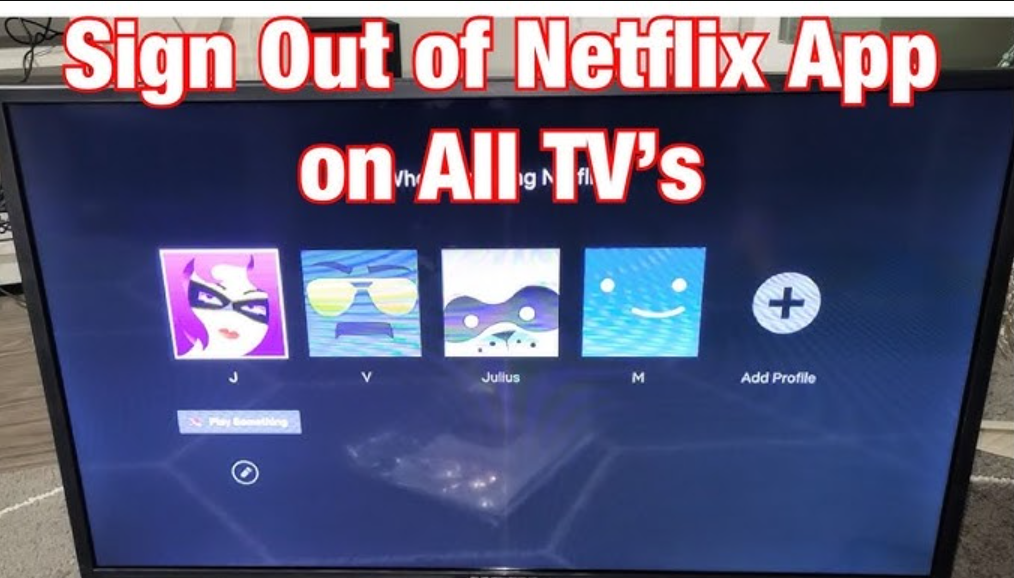
On most modern Smart TVs, including Samsung, LG, Sony, and Android TV models, the Netflix app includes a sign-out option inside its settings menu. To access it, you must first open the Netflix app and ensure you are on the main profile selection or home screen. From there, navigating left using the remote usually reveals a side menu.
Within that menu, you will find a settings or help option. Inside this section, Netflix typically displays an option labeled “Sign Out,” “Log Out,” or “Deactivate.” Selecting this will immediately log the account out of the TV and return the app to the sign-in screen.
Although this process sounds straightforward, interface placement varies by TV manufacturer and Netflix app version. If you do not see a sign-out option immediately, continue reading for alternative methods.
Also Read: Philadelphia Eagles vs New York Giants Match Player Stats
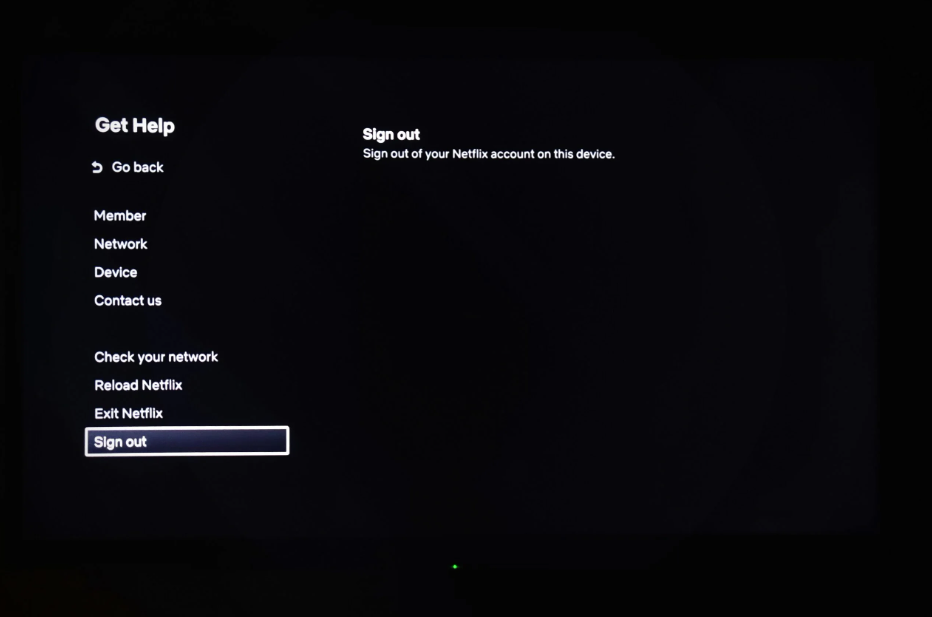
Using the Netflix Get Help Menu
Some Smart TVs hide the sign-out option under a section called “Get Help” rather than traditional settings. This menu is specifically designed for troubleshooting and account actions. Once inside, you may see an option that allows you to sign out, reset the app, or deactivate Netflix on that device.
This method is particularly common on LG webOS TVs and older Samsung models. While the wording may differ, choosing the option to sign out always removes your Netflix account from that television.
How to Log Out of Netflix on Roku TV
Roku devices handle Netflix differently than standard Smart TVs. Roku does not always show a visible sign-out button inside the Netflix interface. Instead, the log-out process often relies on a remote control shortcut.
After opening Netflix on Roku, users can press a specific button sequence on the remote to access a hidden menu. This menu allows you to sign out, deactivate the account, or reset Netflix entirely. Once you confirm the sign-out, Netflix will immediately remove your account from the Roku device.
This method is officially documented by Netflix and is widely used when the standard sign-out option does not appear. It is particularly useful in hotel rooms and vacation rentals where Roku TVs are common.
Also Read: Hanime1 Safety Risks Access Issues & Secure Alternatives
How to Log Out of Netflix on Amazon Fire TV and Fire Stick
Fire TV and Fire Stick devices integrate Netflix through Amazon’s operating system, which gives users more control at the app level. One of the easiest ways to log out of Netflix on Fire TV is by clearing the app’s data.
By navigating to the Fire TV settings and opening the applications section, users can locate Netflix and choose to clear its data. This action removes stored account information, effectively logging you out of Netflix on that TV.
Another option is signing out directly from within the Netflix app if the sign-out option is visible. Both methods are equally effective, though clearing app data is particularly useful when Netflix is frozen or malfunctioning.
How to Log Out of Netflix on Apple TV
Apple TV offers one of the most user-friendly experiences for logging out of Netflix on TV. Inside the Netflix app, users can access the settings menu and choose to sign out directly. If that option is not visible, removing the Netflix app from Apple TV and reinstalling it also logs the account out automatically.
Because Apple TV tightly controls app data, reinstalling Netflix ensures that no account information remains on the device. This method is especially useful if you are giving away your Apple TV or using it temporarily in a shared environment.
Also Read: Crackstreams 2.0 What It Is Safety Risks & Legal Alternatives
How to Log Out of Netflix on Game Consoles
Netflix is available on PlayStation and Xbox consoles, and the sign-out process is similar across both platforms. Inside the Netflix app, navigating to settings or account options usually reveals a sign-out button.
If the option is not available, logging out of the console’s user profile or deleting the Netflix app achieves the same result. This ensures your Netflix account is no longer accessible from that console.
How to Log Out of Netflix on TV Remotely
Sometimes, you no longer have access to the TV where Netflix is signed in. This is common after staying in a hotel, moving homes, or selling a device. In these situations, Netflix provides a remote sign-out feature through its website.
By logging into your Netflix account from a browser and navigating to account settings, you can choose to sign out of all devices. This action logs Netflix out on every TV, phone, tablet, and computer connected to your account. While it is effective, you will need to sign back in on devices you still use.
Netflix recommends changing your password immediately after using this feature for added security.
Also Read: Predator Cast A Legacy of Action, Survival, and Sci-Fi Icons
Common Issues When Logging Out of Netflix on TV
Many users struggle to log out because the Netflix interface changes frequently. App updates, device firmware differences, and regional variations can all affect where the sign-out option appears. In some cases, Netflix intentionally removes the sign-out option from certain TV interfaces to reduce accidental logouts.
If you cannot find a sign-out option, deleting the Netflix app, resetting the TV, or signing out remotely will always work. These methods are reliable regardless of device type.
Best Practices for Netflix Account Security on TVs
Streaming security is often overlooked, but it plays a critical role in protecting your digital identity. Logging out of Netflix on TV should be standard practice whenever you use a shared or public device. Using strong passwords, enabling profile PINs, and monitoring viewing activity through your Netflix account settings further reduces risk.
Netflix reports that account sharing abuse is one of the leading causes of unexpected account locks. Proactively managing where your account is signed in helps avoid these issues.

Frequently Asked Questions
Does logging out of Netflix on TV delete my account?
No, logging out only removes your account from that specific device. Your Netflix account and profiles remain intact.
Can someone use my Netflix if I forget to log out?
Yes, anyone with access to the TV can use your Netflix account if it remains logged in.
Will signing out of all devices log me out everywhere?
Yes, using the “Sign out of all devices” option logs Netflix out on every connected device.
Conclusion
Understanding how to log out of Netflix on TV is an essential skill for modern streaming users. Whether you are protecting your account, managing shared devices, or simply cleaning up unused logins, knowing the correct method for each TV and streaming platform gives you full control over your Netflix experience.
Netflix makes signing in effortless, but logging out requires a bit more knowledge. By following the guidance in this article, you can confidently secure your account on any television, avoid unwanted access, and maintain personalized recommendations that truly reflect your viewing habits.
About The Author